> For the complete documentation index, see [llms.txt](https://docs-jmapserver-lima.k2geospatial.com/llms.txt). Markdown versions of documentation pages are available by appending `.md` to page URLs; this page is available as [Markdown](https://docs-jmapserver-lima.k2geospatial.com/e/applications/jmap-ng-user-guide/introduction/profile-and-user-settings.md).
# Profile and User Settings
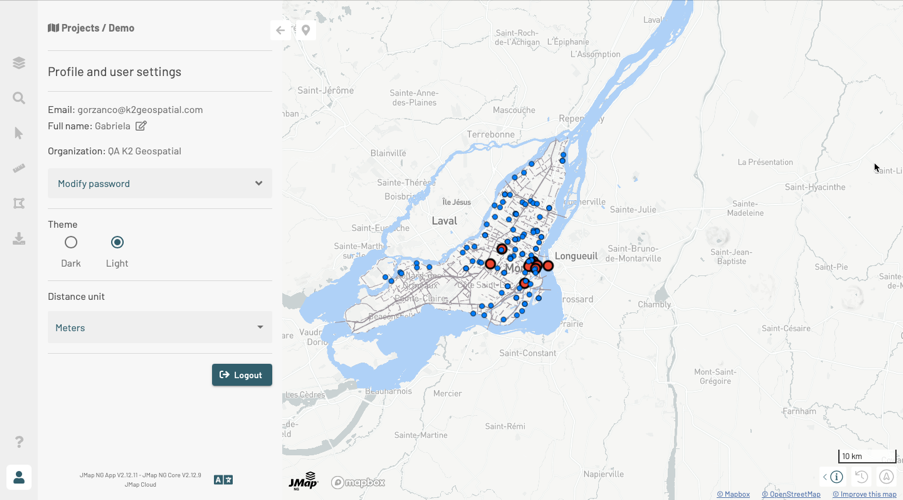
The **Profile and user settings** panel offers some basic functionality to customize JMap NG's interface.
1. Click on to open the **Profile and user settings** panel.
2. Click on if you want to edit your name.
3. If you want to change the app password, open the **Modify password** menu.
4. Enter your current password.
5. Enter the new password.
6. Confirm the new password.
7. Press **Change** to save the new password.
8. Select the **Theme** of the application.
9. In the **Distance unit** drop-down menu, select the unit that will apply to the scale and the distance and area measurements.
10. Click on to display the available languages and change the application's language. The change can take a few moments because it may involve changing the language of the application and data (layer titles, attribute names, tooltip content, etc.).
11. Click on **Logout** if you wish to log out of the session. You will return to the JMap NG login interface.
12. Click on to close the **Profile and user settings** panel or on another icon in the sidebar to open another panel.
 to open the **Profile and user settings** panel.
2. Click on
to open the **Profile and user settings** panel.
2. Click on  if you want to edit your name.
3. If you want to change the app password, open the **Modify password** menu.
4. Enter your current password.
5. Enter the new password.
6. Confirm the new password.
7. Press **Change** to save the new password.
8. Select the **Theme** of the application.
9. In the **Distance unit** drop-down menu, select the unit that will apply to the scale and the distance and area measurements.
10. Click on
if you want to edit your name.
3. If you want to change the app password, open the **Modify password** menu.
4. Enter your current password.
5. Enter the new password.
6. Confirm the new password.
7. Press **Change** to save the new password.
8. Select the **Theme** of the application.
9. In the **Distance unit** drop-down menu, select the unit that will apply to the scale and the distance and area measurements.
10. Click on  to display the available languages and change the application's language. The change can take a few moments because it may involve changing the language of the application and data (layer titles, attribute names, tooltip content, etc.).
11. Click on **Logout** if you wish to log out of the session. You will return to the JMap NG login interface.
12. Click on
to display the available languages and change the application's language. The change can take a few moments because it may involve changing the language of the application and data (layer titles, attribute names, tooltip content, etc.).
11. Click on **Logout** if you wish to log out of the session. You will return to the JMap NG login interface.
12. Click on  to close the **Profile and user settings** panel or on another icon in the sidebar to open another panel.