> For the complete documentation index, see [llms.txt](https://docs-jmapserver-lima.k2geospatial.com/llms.txt). Markdown versions of documentation pages are available by appending `.md` to page URLs; this page is available as [Markdown](https://docs-jmapserver-lima.k2geospatial.com/e/applications/jmap-ng-user-guide/the-data/data-layers/thematics.md).
# Thematics
Layers can have thematics, the appearance of that layer's elements vary based on one or more attributes.
You can display more than one thematic for a layer at the same time.
To display the **THEMATIC(S)** panel of the layer, you have two choices:
1. Click the layer icon,
or
Click on to open the menu and select **Thematic management**.
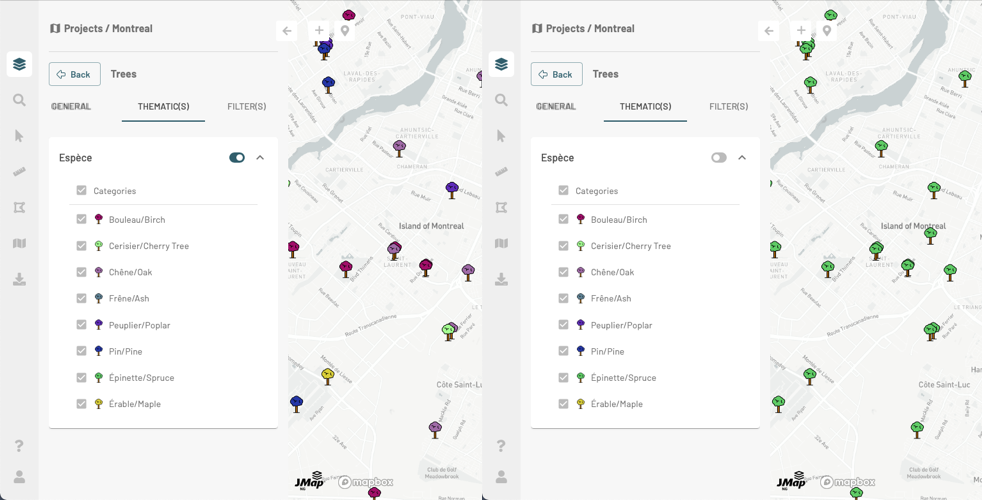
The **THEMATIC(S)** panel displays the legend of the thematics.
2. Use the switch to enable or disable each thematic. The appearance of the icons representing the layer's objects will change according to your choice.
3. You can uncheck one or more classes or categories of the thematic so as not to display on the map the elements of these classes.
4. If the JMap administrator has configured it in this way, the thematic legend can be dynamic, i.e. the legend only shows the classes or categories of the elements displayed in the map. The classes of elements that are not displayed in the map are not shown in the legend. As you navigate the map, the legend changes depending on what is displayed there.
5. Click on or to close or open the thematic's card.
6. Click on **Back** to return to the **Layers** panel.
## Thematics management
This option is only available for layers that have thematics configured.
1. Click on **Thematic management** to open the **THEMATIC(S)** panel and use the functions described in the previous section.
 to open the menu and select **Thematic management**.
The **THEMATIC(S)** panel displays the legend of the thematics.
to open the menu and select **Thematic management**.
The **THEMATIC(S)** panel displays the legend of the thematics.
 or
or  to close or open the thematic's card.
6. Click on **Back** to return to the **Layers** panel.
## Thematics management
This option is only available for layers that have thematics configured.
1. Click on
to close or open the thematic's card.
6. Click on **Back** to return to the **Layers** panel.
## Thematics management
This option is only available for layers that have thematics configured.
1. Click on  **Thematic management** to open the **THEMATIC(S)** panel and use the functions described in the previous section.