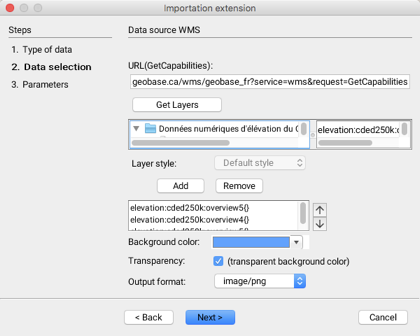
| URL(GetCapabilities) | You must indicate the GetCapabilities URL that will return the WMS server capabilities. The URL must be similar to the following example: http://www.server.com/wms?SERVICE=WMS&VERSION=1.3.0&REQUEST=GetCapabilities |
| Get Layers | This button allows you to obtain the list of raster data sets contained in the server. On the left, the data sets are organized hierarchically. When a data set is clicked, its details are displayed on the right. |
| Layer style | For certain data sets, a style can be selected from a drop-down menu. |
| Add / Remove | These buttons allow you to add or remove data from the selection. |
| Background color | A background color can be selected and will be displayed where there is no data. |
| Transparency | The background color can be made transparent. |
| Output format | This drop-down menu allows you to choose the layer output format. This is always an image whose format can be selected among the options offered by the WMS server. |
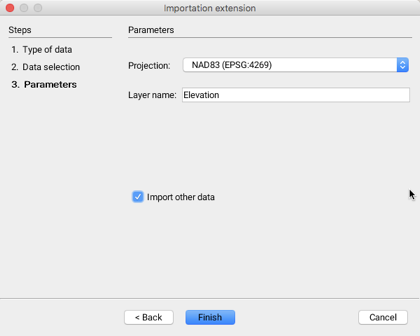
| Projection | Drop-down menu allowing you to select the data projection. The available projections are determined by the WMS server. The projection of the data must be the same as that of the project because JMap does not perform the reprojection of the data in raster format. |
| Layer name | Data will be imported into a layer whose name must be specified. By default, the name is derived from the names of the data sets to import. |
| Import other data | It is possible to indicate that other data sets will be imported; this automatically brings you back to the first step. |